

 Multi-device screen mirroring
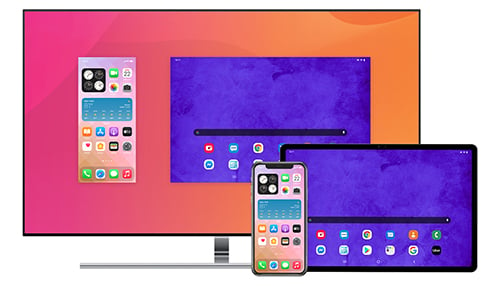
Connect any number and combination of devices to Reflector at the same time to create the ultimate collaborative content-sharing experience.
Learn more

Mirror any device to your screen — wirelessly.
One universal license for each app — works on macOS and Windows.
— or buy Reflector 4 on its own —



For schools, districts or volume licensing — contact us.

Stream audio and video from your Mac or PC to any screen.
One universal license for each app — works on macOS and Windows.
— or buy AirParrot 3 on its own —
For schools, districts or volume licensing — contact us.
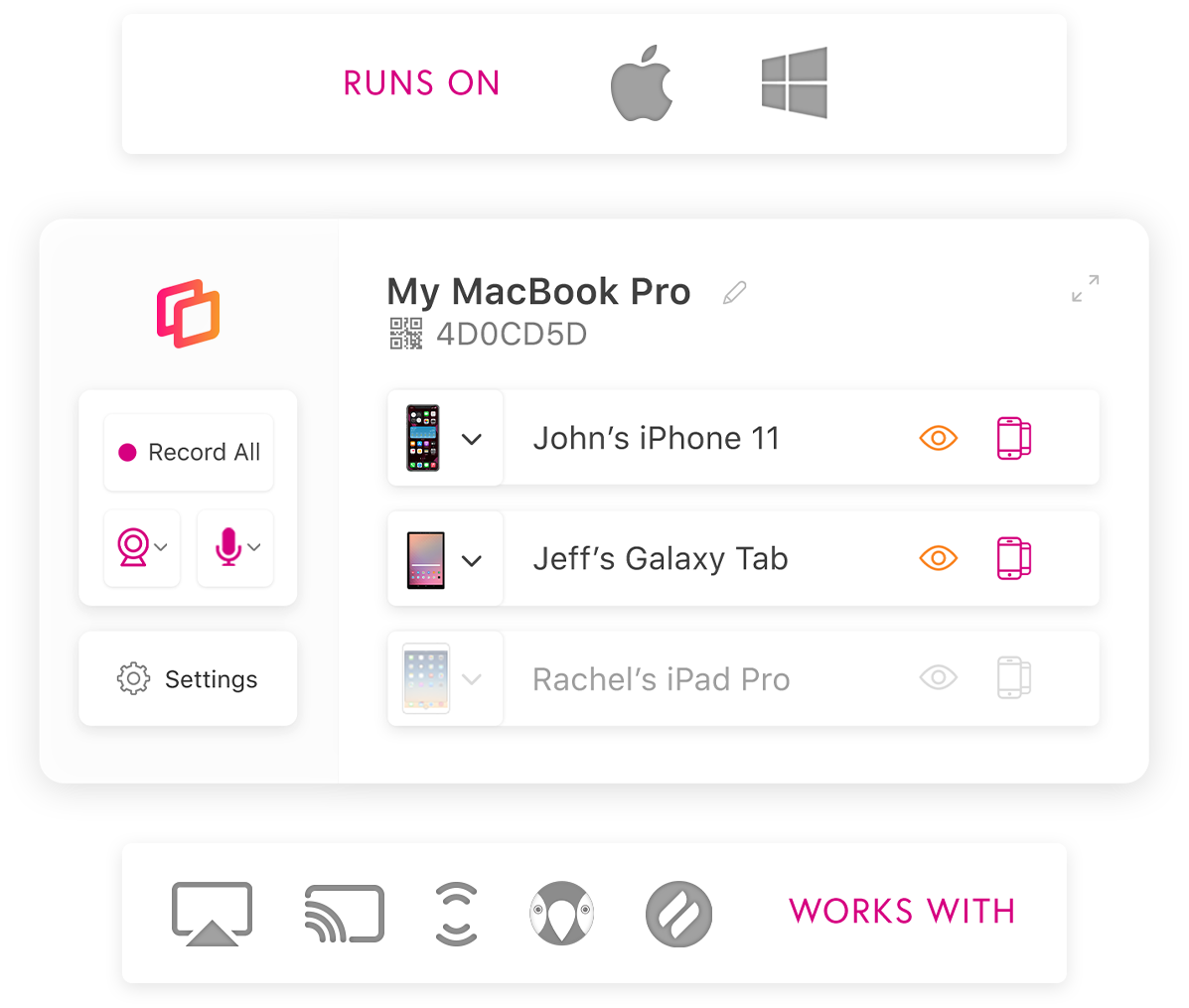
Add Reflector software to Mac or Windows computers. Then receive mirroring and streaming connections from a number of popular phones, tablets and computers:
Reflector combines the powers of popular media streaming receivers like Apple TV, Chromecast and more to create a robust, all-in-one mirroring and streaming receiver.
Reflector works wirelessly with the devices you use every day. Replace cables, adapters and other hardware with a single app. Pretty great, right?
See what else it can do →
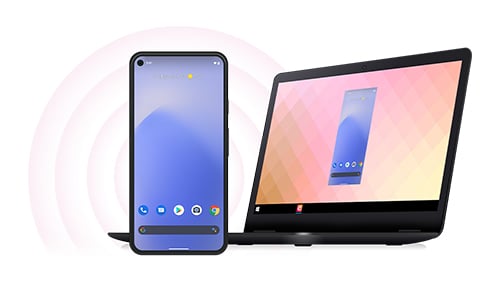

The core technology that powers Reflector was completely rewritten for Reflector 4. It combines the latest tech advancements and years of development work to offer reliable, high-performance screen mirroring.
See what else is new →
Multi-device screen mirroring
Connect any number and combination of devices to Reflector at the same time to create the ultimate collaborative content-sharing experience.
Learn more
 Record screens + voiceover audio
Record device screens and voiceover audio to create guided tutorials and presentations with commentary.
Learn more
Reflector receives connections from the Google Cast, Miracast and AirPlay protocols that are native to your devices so you can screen mirror and stream without any additional software or hardware.

“Just had a big demo/meeting and people were amazed with Reflector…”
“Worked perfectly showing a video on my phone during my presentation…”
"...you might want to immediately implement it into your daily routine.”